

When someone in your community is dealing with a midnight fever, running low on a critical prescription or hunting for a specific skincare brand, what’s the first thing they do? They look at their phone and search for a «pharmacy near me» or «chemist open now.» If your pharmacy isn’t showing up at the very top of those local Google results, you are missing out on foot traffic to the chemist down the road.
Getting your Irish pharmacy to rank first on Google is all about mastering Local SEO (which is just jargon for «making sure your pharmacy pops up when locals search for you online»). Here is exactly how to claim your profile, optimise your listing and establish your pharmacy as the go-to community health hub.
What is a Google Business Profile?
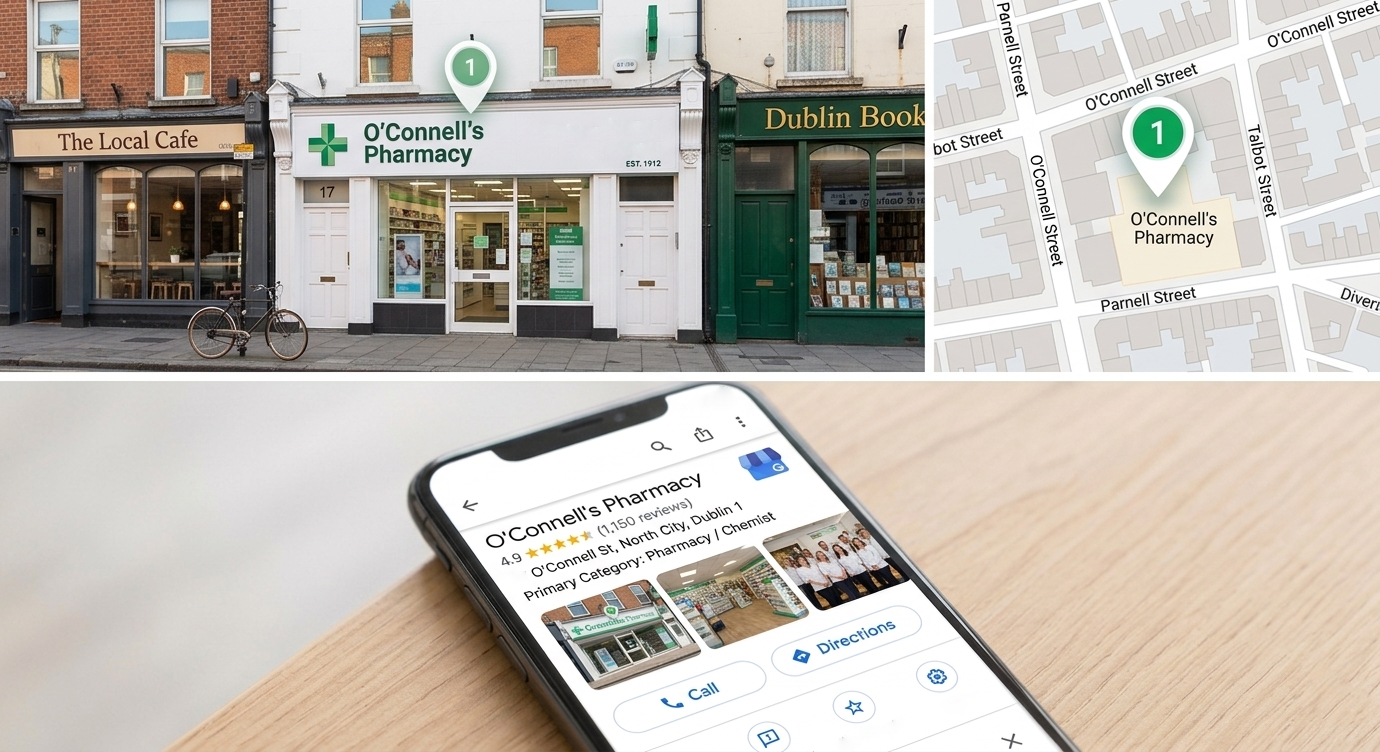
To win at local search, you need to understand where those top results come from. When you do a local search, Google displays a map alongside a list of three local businesses, often called the «Local 3-Pack.» This premium digital real estate is entirely powered by Google Business Profile (GBP).
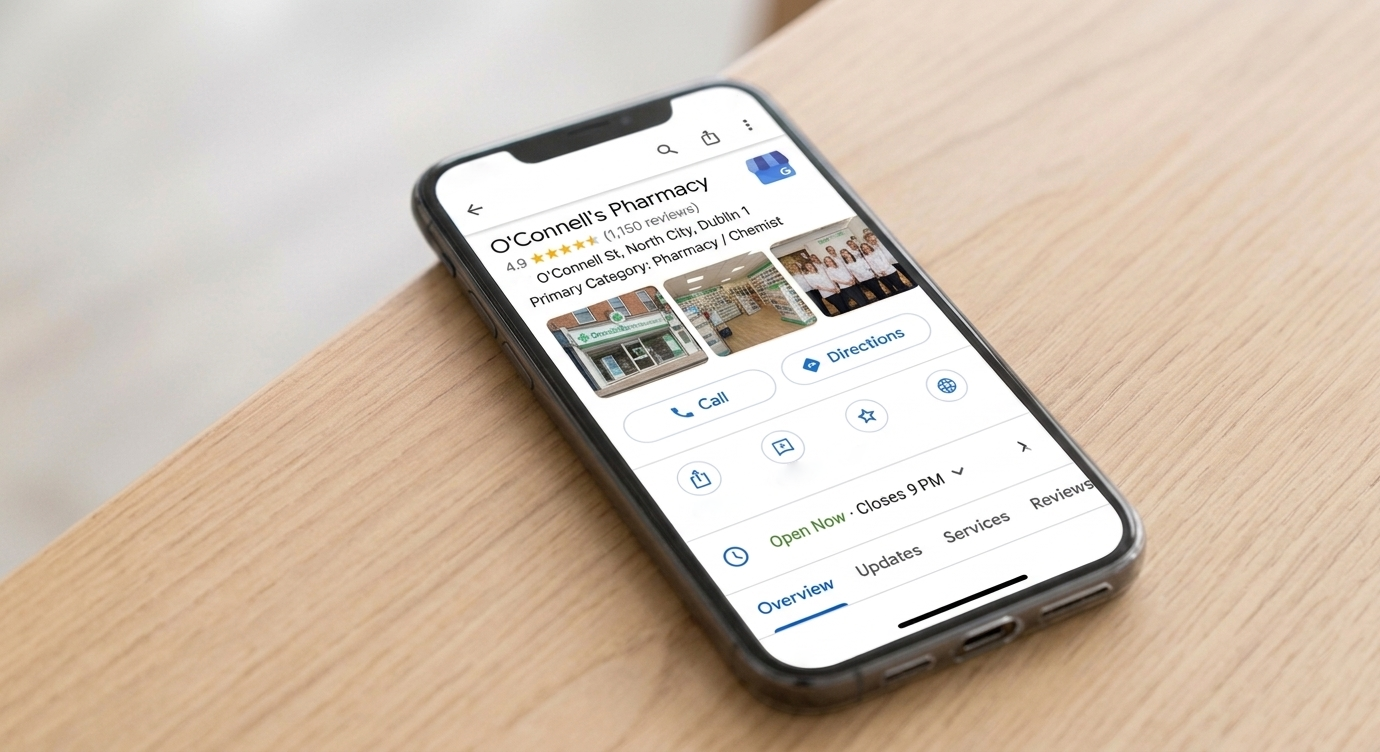
A Google Business Profile is a free tool provided by Google that allows business owners to manage how their storefront appears across Google Search and Google Maps. It is your pharmacy’s secondary, highly interactive homepage.
Its appearance adapts automatically to any device:
- On desktop: It displays as a detailed information panel on the right side of the screen.
- On smartphones: It takes center stage at the very top of search results and Google Maps.
No matter how patients search, your profile serves as a direct, one-tap communication hub. From their screen, local clients can instantly:
- Call your team directly without dialing.
- Visit your website to order a repeat prescription or book a service.
- Get real-time GPS directions straight to your front door.
- Check live opening hours before they make the trip.
In today’s search landscape, your GBP is often the very first interaction a patient has with your business. It is also the primary data source that Google uses to feed its AI Overviews, voice search, and mobile recommendations. If a local parent asks their phone, «Where is the nearest open pharmacy?» Google pulls the answer directly from verified GBP data.
Step-by-step: How to create and claim your profile
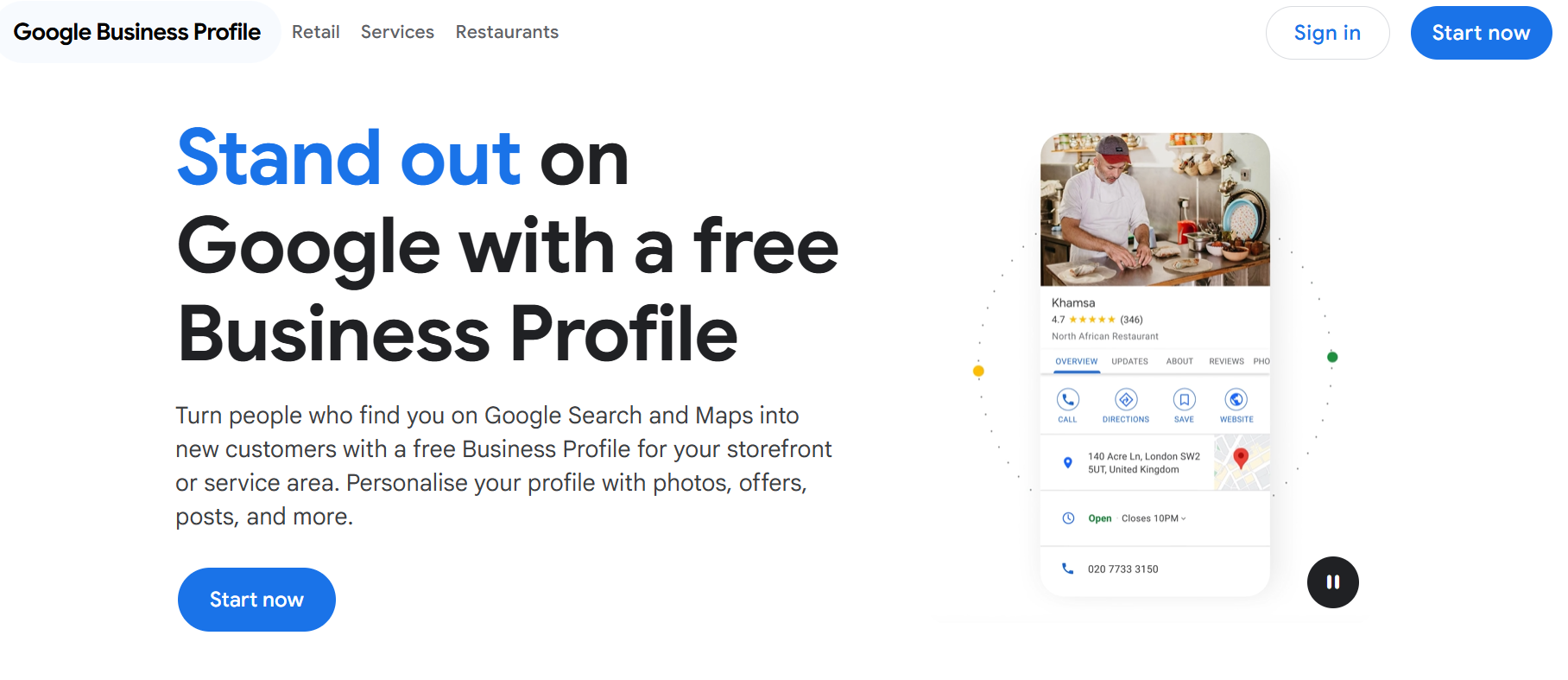
Setting up your profile only takes about 15 minutes. Follow these steps to get your pharmacy on the map correctly:
Step 1: Sign in and search
- Go to google.com/business and click Manage Now.
- Sign in using your business Google Account (it is best to use a generic company email like management@yourpharmacy.ie rather than a personal Gmail).
- Type the name of your pharmacy. If your pharmacy has been around a while, Google might already have a basic, unverified listing for it. If it appears, click it to «Claim this business.» If nothing appears, click «Create a business with this name.»
Step 2: Choose your business type and category
- Select «Local store» as your business type, since customers visit your physical chemist.
- Crucial Step: When prompted for your Business Category, type and select «Pharmacy» or «Chemist» as your primary category. You can add secondary categories later (like Cosmetics store or Vitamin and supplements store), but «Pharmacy» must be the main one to rank for medical searches.
Step 3: Enter your precise location
- Enter your exact address. Make sure this is written exactly how it appears on your website and your PSI (Pharmaceutical Society of Ireland) registration.
- Google will display a map with a pin. Drag the pin so it sits directly over your pharmacy’s front door.
Step 4: Add your contact details
- Input your store’s phone number and your official website URL. Double-check that these are correct, as patients will use the «Click to Call» feature constantly on mobile.
Step 5: Verify your pharmacy
- Google needs to know you actually own the business. They will offer a few ways to verify.
- For pharmacies, Google frequently requires Video Verification. You will use your smartphone to record a short, continuous video showing your street sign, your storefront exterior and then walking inside to show your pharmacy counter or business documentation. Alternatively, they may offer a phone call or a postcard sent to the address.
The superchargers: Reviews and Google Posts
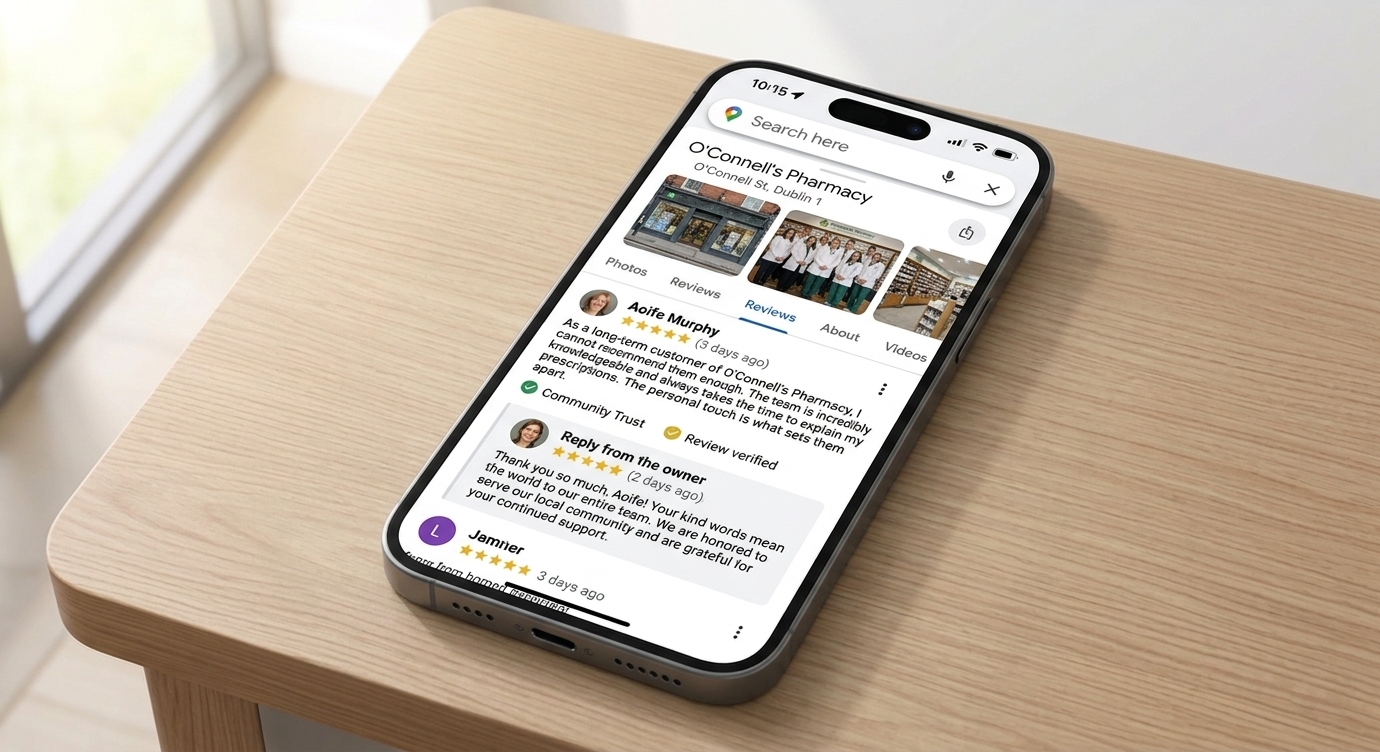
Creating your profile is just the foundation. To actually climb to the number one spot and beat out local competition, you need to actively feed the algorithm. The two best ways to do this are through Google Reviews and Google Posts.
How to gather 5-star reviews
Reviews are one of the most critical factors for ranking first. A pharmacy with fifty 4.8-star reviews will almost always outrank a pharmacy with three reviews.
- Ask at the counter: When a patient expresses gratitude for your help or advice, say: «We’re so glad we could help! If you have a spare moment, leaving us a quick review on Google really helps other locals find us.»
- Use QR codes: Make it effortlessly simple. Inside your GBP dashboard, there is a «Get more reviews» link. Copy that link, turn it into a free QR code and print it on small cards placed at the prescription collection point or at the main till.
- Always respond: Reply to every single review, both good and bad. When replying, naturally include keywords. For example: «Thanks, Mary! We take pride in being the friendliest pharmacy in [Your Town] for prescription collection.»
Important note: Be sure to keep your replies professional and respect patient confidentiality. Never confirm specific medical conditions or medication details in a public review response.
Google Posts are essentially mini-advertisements or social updates that appear directly on your Google listing. Regularly posting signals to Google that your business is highly active.
- What to post: Share health alerts (e.g., winter flu vaccine availability), store updates (e.g., «We are open this Bank Holiday Monday») or retail promotions (e.g., «20% off all suncare this week»).
- Include a Call to Action (CTA): Every Google Post allows you to add a button. Use buttons like «Call Now,» «Learn More,» or «Book Online» to direct patients straight to your winter vaccine booking page or website shop. Aim to put up a new post at least once a week.
What images to include
Google’s algorithm doesn’t just read your text; it monitors how users interact with your profile. Profiles packed with crisp, high-quality, authentic photos get significantly more clicks, website visits and direction requests than those with bare profiles or generic stock images.
Adding real photos builds immediate trust.
Patients want to see a clean, professional environment and familiar faces before they walk through your doors. Furthermore, Google’s built-in AI tools scan your photos to understand what products you stock and what your shop looks like, which helps you rank for specific product searches.
When updating your profile, avoid stock photos entirely. Google prefers real, authentic snapshots. You should aim to upload a mix of your external storefront so people can spot you from the street, your pristine interior layout, your shelves stocked with popular retail or skincare brands and smiling photos of your team.
Photo ideas for your Google Profile
To give you some inspiration, here is a checklist of image ideas you can shoot on a smartphone to use for your live Google Business Profile:
1. The «Welcome inside» storefront shot
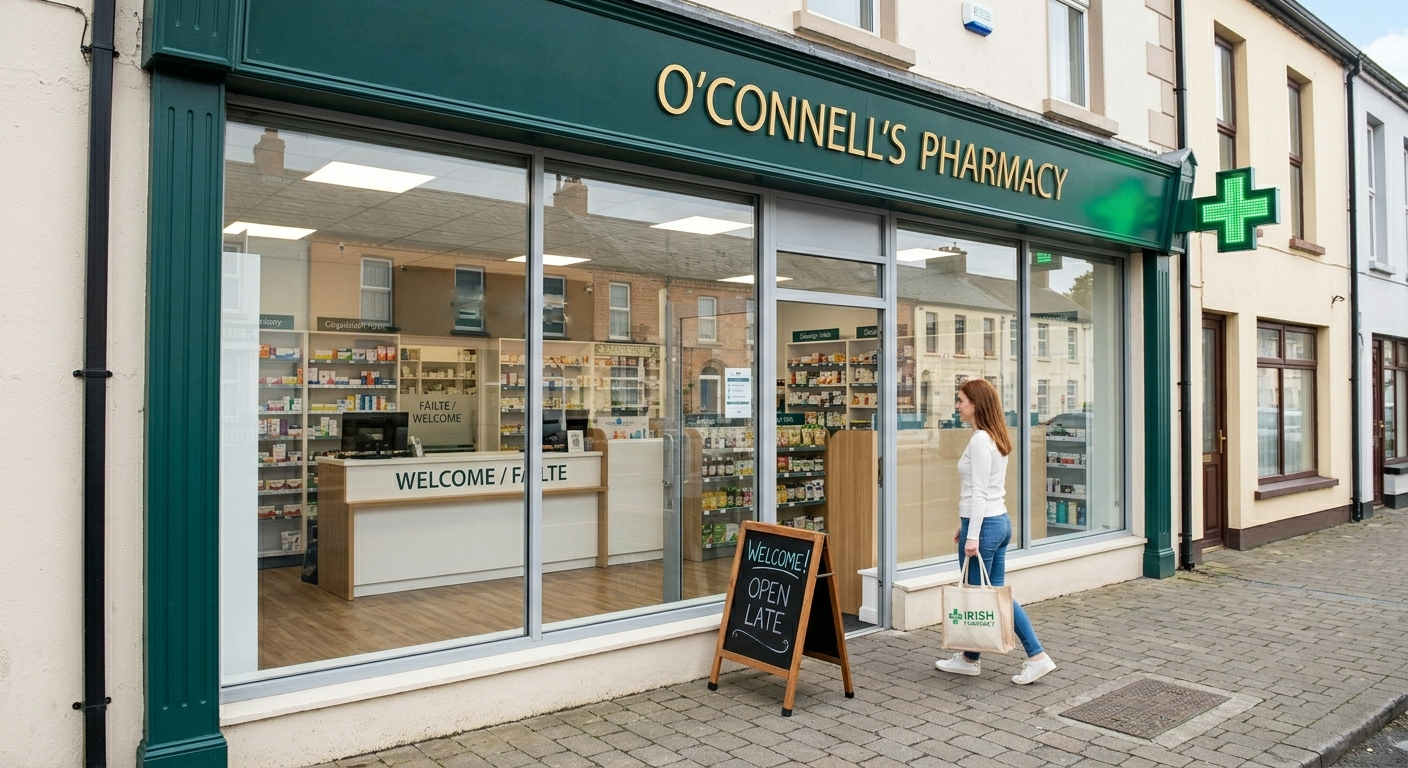
A clear, wide-angle photo of your pharmacy’s exterior on a bright day, clearly showing your signage, the classic green cross and the front door. It makes your business instantly recognisable to people driving or walking by and Google uses it to verify your physical location.
2. The friendly pharmacist team photo
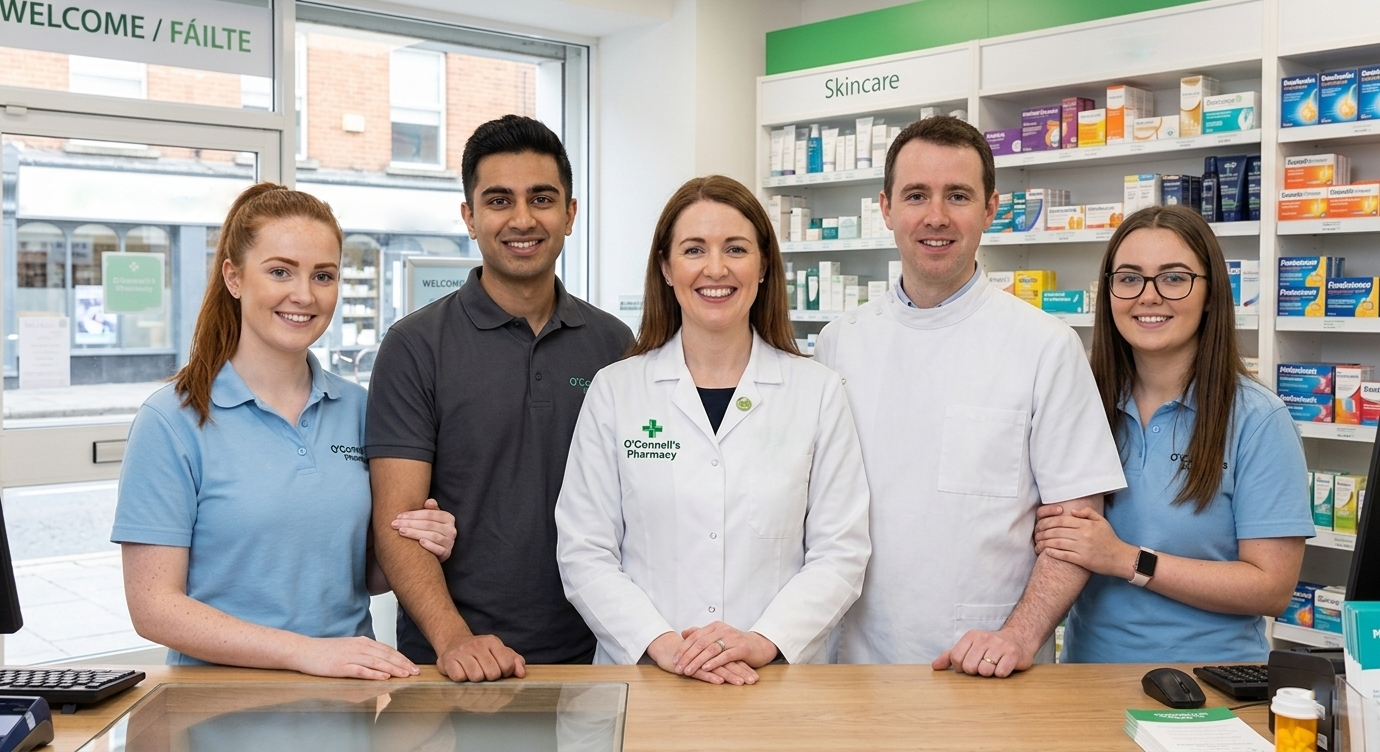
Gather your pharmacists and technicians behind the counter for a warm, smiling group photo in their uniforms or coats. It humanises your brand. In Ireland, community pharmacies are all about personal relationships and seeing a friendly local face builds immediate comfort.
3. The clean and accessible consultation room
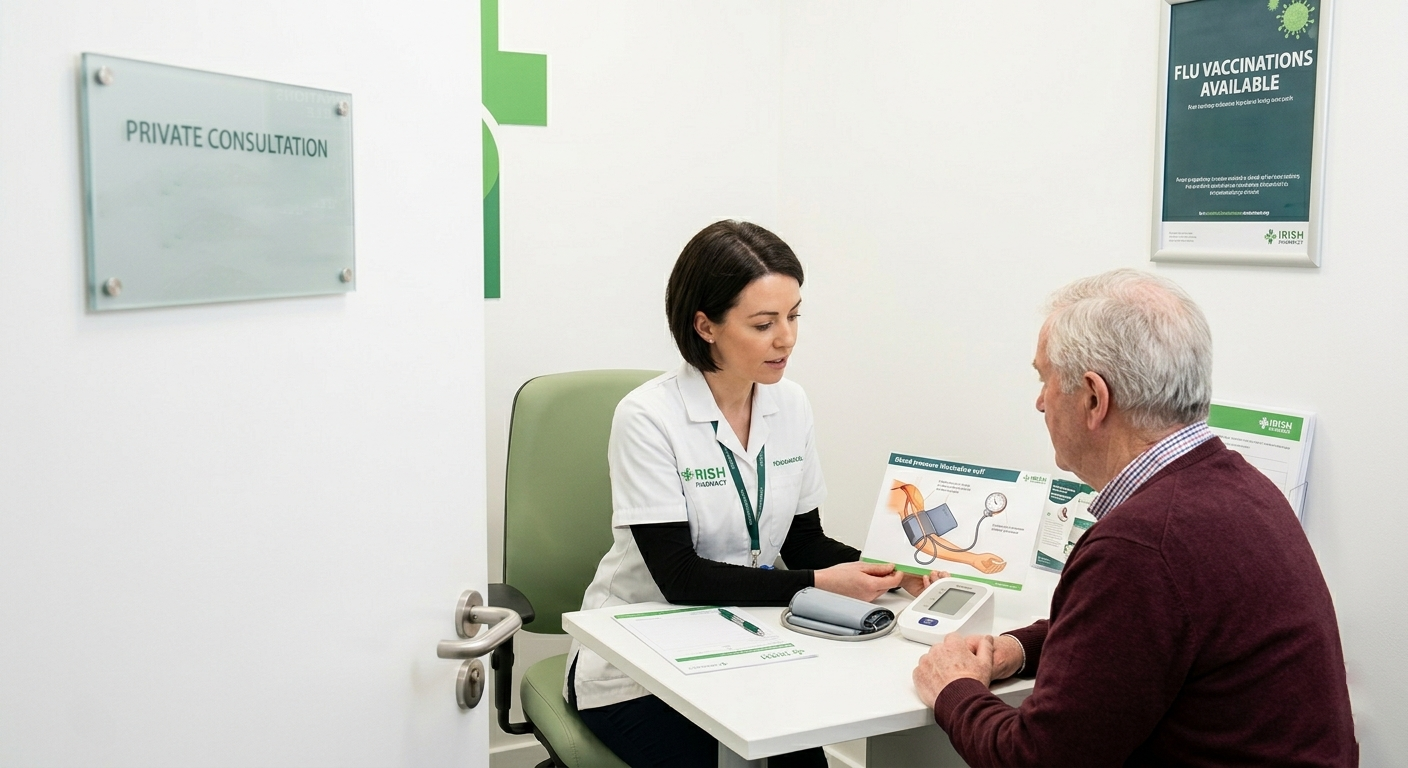
A crisp shot of your private consultation room, highlighting its privacy, cleanliness and comfort. It subtly advertises your clinical services, like flu vaccinations, blood pressure checks or private consultations, showing patients you offer a professional, discreet space.
4. High-end skincare and retail shelves
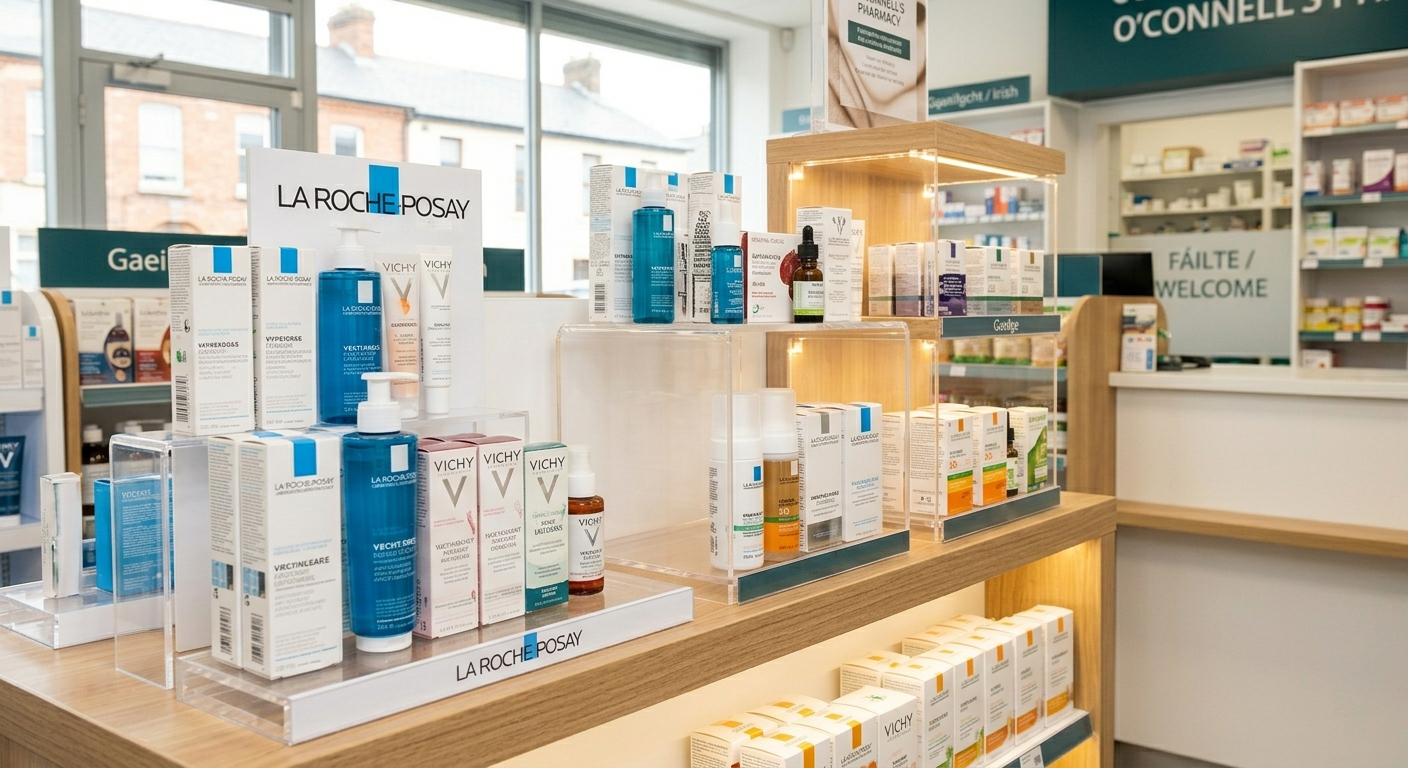
A beautifully styled aesthetic shot of your retail shelves, focusing on popular premium brands (like La Roche-Posay, Vichy or local Irish wellness brands). It drives retail foot traffic. When users see that you stock specific, high-demand wellness and beauty products, they’ll choose your shop for their weekend errands.
5. A close-up of digital convenience
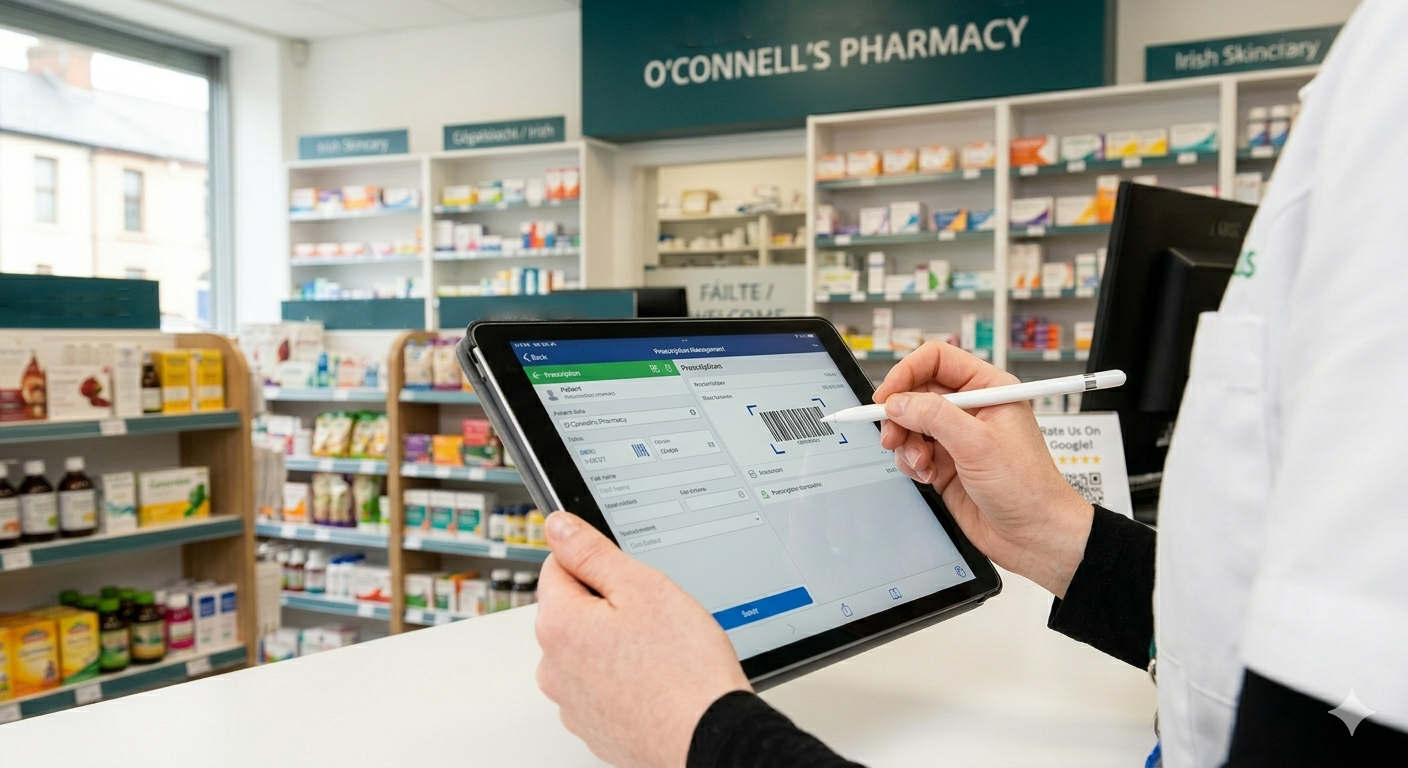
A photo of a pharmacist interacting with a modern prescription app, scanning a digital barcode or managing a blister pack system. It positions your pharmacy as modern, efficient and easy to deal with, appealing to busy professionals who want a quick, hassle-free experience.
Conclusion
Make it a habit to review your GBP Insights or Performance tab monthly. This data reveals exactly how many potential customers called your business, requested driving directions or visited your website straight from Google Maps.
By keeping your Google Business Profile active, consistently gathering reviews, sharing weekly updates through Google Posts and regularly uploading fresh, authentic photos, you’ll signal to Google that your pharmacy is the most active, trusted and relevant choice in town.